8 Best AI Video Editing Tools for YouTube Beginners in 2026
You filmed your first YouTube video, and now you are staring at two hours of raw footage with no idea where to start. Every tutorial assumes…

You filmed your first YouTube video, and now you are staring at two hours of raw footage with no idea where to start. Every tutorial assumes you already know timelines, keyframes, and color grading. This is exactly where AI video editing tools for YouTube beginners change the game — they handle the tedious parts automatically so you can focus on your ideas instead of the software.
In 2026, AI editors can cut silences, generate captions, remove filler words, and even turn one long recording into a week of Shorts. Many of them are free or have generous free plans, which means a beginner can produce polished videos without spending a dollar or learning complex software first.
I compared the most popular options to find the 8 best AI video editing tools for YouTube beginners — what each one does well, what its free plan actually includes, and who should pick it.
Quick Comparison
| Tool | Best For | Free Plan Highlights |
|---|---|---|
| CapCut | All-round free editing | Full-featured free plan, mostly watermark-free |
| Descript | Text-based editing | Limited transcription and AI credits |
| VEED | Quick browser edits | Limited subtitle minutes, watermarked exports |
| Pictory | Script-to-video | Free trial available |
| InVideo | Template videos | Free plan with watermarked exports |
| OpusClip | Video-to-Shorts | Free monthly credits |
| Canva | Simple branded videos | Free plan with basic video tools |
| Kapwing | Collaborative editing | Limited monthly AI credits, watermarked exports |
The 8 Best AI Video Editing Tools for YouTube Beginners
1. CapCut — Best Free All-Round Editor
CapCut is the most generous free video editor available in 2026. It runs on mobile, desktop, and the web, and includes AI auto-captions, background removal, and a huge library of templates and effects. Most exports carry no watermark on the free plan, which is rare among free editors.
For YouTube beginners, the appeal is simplicity: drag clips onto the timeline, tap auto-captions, pick a template, and export. It handles both long-form videos and Shorts, making it a genuine one-tool solution when you are starting out.
Free plan: Full-featured free plan; no watermark on most exports (as of 2026).
Best for: Beginners who want a complete free editor for YouTube and Shorts.
2. Descript — Best Text-Based Editing
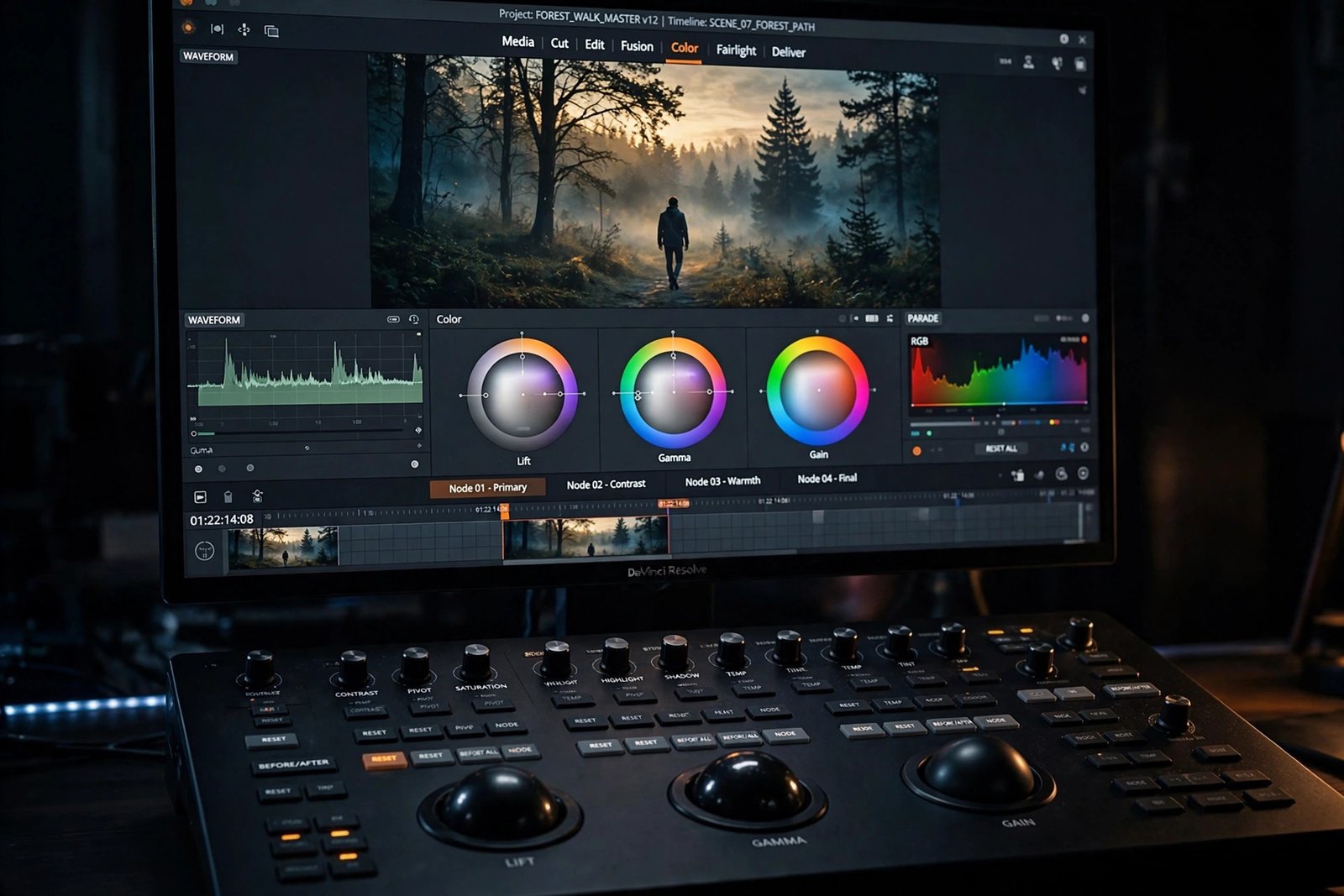
Descript turns your video into an editable transcript. Delete a sentence from the text and it disappears from the video. Its AI removes filler words like “um” and “uh” automatically, and it can even clone your voice to fix mistakes without re-recording.
This workflow is a revelation for talking-head YouTubers and podcasters: rough cuts that took hours now take minutes. The trade-off is a learning curve if you are used to traditional timelines, and the free plan is limited compared to the paid tiers.
Free plan: Free tier with limited transcription and AI credits; exports are watermarked (check the official pricing page).
Best for: Talking-head videos, podcasts, and interviews.
3. VEED — Best Browser-Based Quick Edits
VEED runs entirely in your browser — nothing to install. Its AI generates subtitles automatically, cleans up background noise, and helps you repurpose clips for different platforms. It is ideal when you want fast polish without opening heavy software.
The free plan includes a limited number of subtitle transcription minutes per month, and exports carry a watermark. For quick caption jobs and simple edits, though, it remains one of the fastest options available.
Free plan: Free plan with limited subtitle minutes; watermarked exports (as of 2026).
Best for: Fast captions and simple browser-based edits.
4. Pictory — Best Script-to-Video Tool
Pictory turns a script — or even a blog post URL — into a finished video, matching your words with stock footage, AI voiceover, and captions. It is built for creators who want to publish without ever touching a camera.
This makes it perfect for faceless YouTube channels: write or paste your script, and Pictory assembles the video for you. A free trial lets you test the full workflow before deciding whether to commit to a paid plan.
Free plan: Free trial available; paid plans unlock full exports (check the official pricing page).
Best for: Faceless channels and turning scripts into videos.
5. InVideo — Best for Fast Template Videos
InVideo combines AI script-to-video generation with thousands of templates. Describe your video idea, and its AI drafts the scenes, selects footage, and adds voiceover — you then refine the result instead of building from zero.
Beginners like it because you start from a near-finished video rather than a blank timeline. The free plan lets you explore the whole platform, though exports include a watermark until you upgrade.
Free plan: Free plan with watermarked exports (as of 2026).
Best for: Quick marketing-style and template-driven videos.
6. OpusClip — Best for Turning Videos into Shorts
OpusClip takes a long YouTube video and uses AI to find the most engaging moments, then reframes them vertically as Shorts with captions and a virality score for each clip. One recording becomes a week of short-form content.
If your strategy includes YouTube Shorts, TikTok, or Reels alongside long videos, this tool pays for itself in saved time. The free plan includes monthly credits so you can test it on your real videos first.
Free plan: Free monthly credits included (as of 2026).
Best for: Repurposing long videos into Shorts.
7. Canva — Best for Simple Branded Videos
You probably know Canva for design, but its video editor with Magic Studio AI handles simple YouTube intros, outros, and social clips beautifully. Thousands of templates mean you never start from a blank screen.
It is not a full non-linear editor, but for branded, template-based videos it is the easiest path from idea to upload — especially if you already use Canva for your thumbnails.
Free plan: Free plan includes basic video creation tools (as of 2026).
Best for: Intros, outros, and simple branded clips.
8. Kapwing — Best Collaborative Browser Editor
Kapwing is a full browser-based editor with AI helpers: auto-subtitles, background removal, an AI assistant, and smart B-roll suggestions. Multiple people can collaborate on the same project in real time, which is handy for small teams.
The free plan includes a limited number of monthly AI credits — enough to try the headline features properly. Like most browser editors, free exports carry a watermark.
Free plan: Free plan with limited monthly AI credits; watermarked exports (as of 2026).
Best for: Teams and creators who edit with collaborators.
How to Choose the Right AI Video Editor
- Match the tool to your format. Talking-head videos and podcasts belong in Descript; Shorts belong in CapCut or OpusClip; faceless channels belong in Pictory or InVideo.
- Test the free plan on a real video. A ten-minute trial on your own footage tells you more than any review. Check whether the free limits actually cover your workflow.
- Check the export catches. Watermarks, resolution caps, and monthly credit limits are where free plans bite. Read the fine print before you invest hours learning a tool.
- Pick one and stick with it. Switching editors every week kills momentum. Choose the closest fit, learn it properly, and upgrade only when you outgrow it.
Frequently Asked Questions
Can I edit YouTube videos completely free with AI tools?
Yes. CapCut in particular offers a genuinely complete free editing experience with no watermark on most exports. Other tools like VEED, Kapwing, and Descript have useful free tiers with some limits, so a zero-budget workflow is absolutely possible.
Which AI video editor is easiest for absolute beginners?
CapCut and Canva are the easiest starting points thanks to templates and simple timelines. If you record talking-head videos, Descript’s text-based editing is surprisingly intuitive once you try it — you edit video the way you edit a document.
Do free AI video editors add watermarks?
Most do, with CapCut as the notable exception on most exports. Descript, VEED, InVideo, and Kapwing all watermark free exports as of 2026. If watermark-free output matters, check each tool’s current free terms before committing.
Can AI really edit a video by itself?
AI handles the mechanical work impressively — cutting silences, removing filler words, captioning, reframing for vertical. But creative decisions like pacing, story, and which moments matter still need your judgment. Think of AI as a fast assistant, not a replacement director.
Is CapCut or Descript better for YouTube?
It depends on your content. CapCut wins for general editing, effects, and Shorts with its generous free plan. Descript wins for talking-head videos and podcasts where transcript-based editing saves hours. Many creators eventually use both.
Final Thoughts
You do not need expensive software or years of practice to start a YouTube channel in 2026. Pick one tool from this list that matches your format, learn it on your first three videos, and let AI handle the tedious parts while you focus on getting better on camera.
For more creator-focused guides, explore our AI Image & Video Tools category — from AI image generators to thumbnail makers, everything you need to look professional on a beginner’s budget.